Custom Measures
Sometimes, you need a measure that isn't available directly in your dataset, but can be calculated from existing measures. With Custom Measures, you can create new measures from compatible measures already available in the dataset.
Custom Measures support these calculation types:
Sum
Average
Count (Unique Count)
Supported Custom Measure Combinations
Create Custom Measures by dividing one compatible measure by another compatible measure. This allows you to create ratios from existing Sum, Average, and Count measures, as long as the source columns have been configured to support those calculation types. For more information, go to the Configure Calculations for Your Columns page.
Examples of Custom Measures include:
Sum / Sum: Total Revenue divided by Total Quantity to calculate revenue per item.
Average / Sum: Average Discount divided by Total Revenue to compare average discount against total sales.
Count / Count: Unique Customers divided by Unique Products to compare customer breadth against product breadth.

You can edit or delete the Custom Measure at any point in time.
Before You Create a Custom Measure
Before you create a Custom Measure, make sure the source columns are configured to support the required calculation types.
To use a measure in the numerator or denominator as a total, the source column must support Sum.
To use an average-based measure, the source column must support Average.
To use a count-based measure, the source column must support Count (Unique Count).
If a measure isn't available in the Custom Measure builder, check the dataset calculation settings for the source columns first.
Can I compare Custom Measures with different time periods?
Yes, Custom Measures work like a standard key measure, where you can identify trends over time and set specific comparison periods.
Who can create Custom Measures?
Only Dataset Owners or Editors are allowed to create Custom Measures.
How do I create a Custom Measure?
Go to the Data page in Alteryx One.
Select your dataset.
Go to the Data Insights tab.
Select Settings.
Select Custom Measures, and then Create Custom Measure.
Enter a name for the Custom Measure, then select the numerator and denominator from the list of available compatible measures.
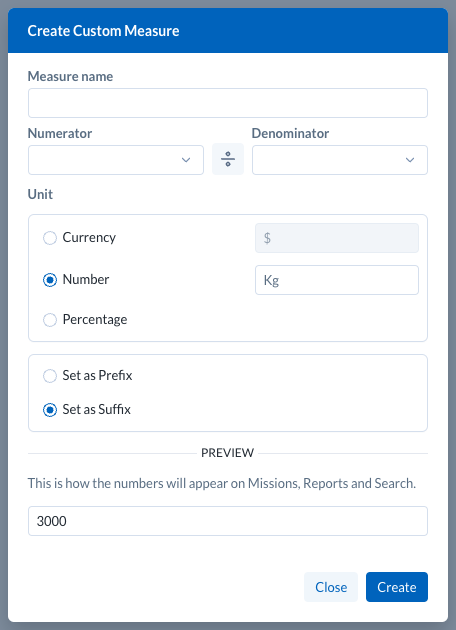
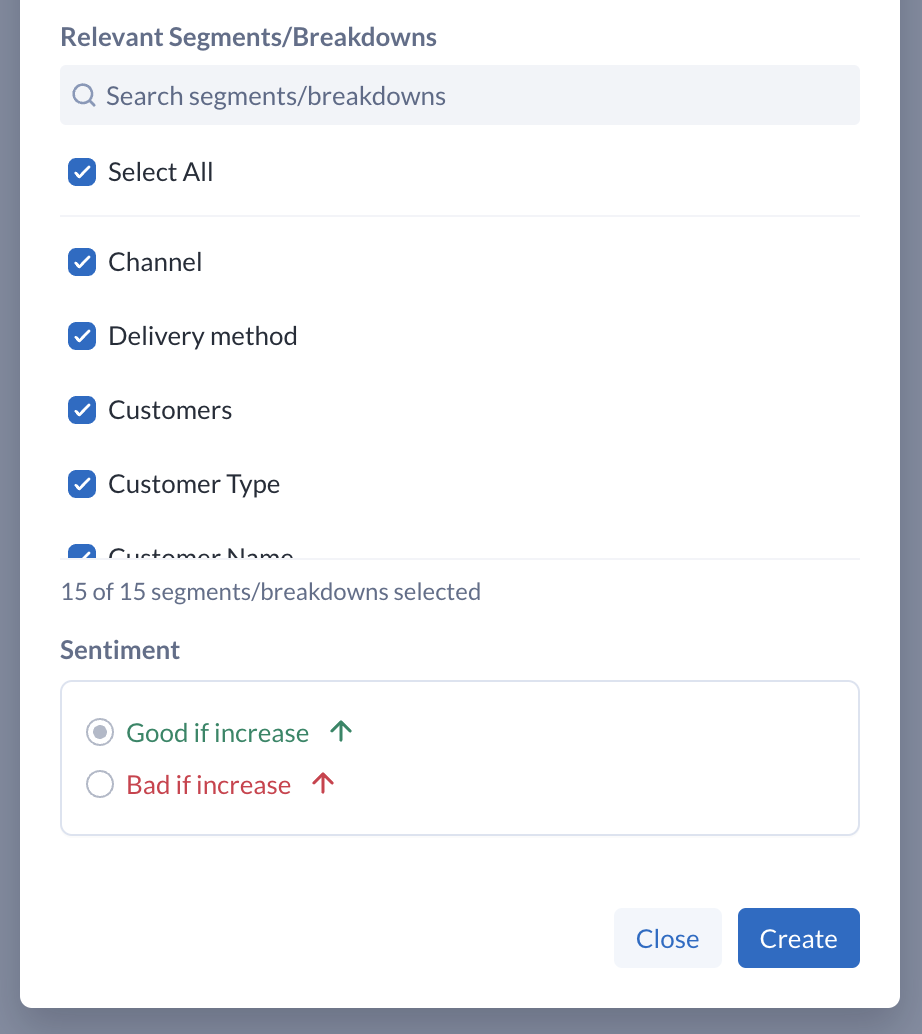
When a numerator is selected, the window expands to allow configuration of Relevant Segments/Breakdowns. The Sentiment of the Custom Measure is inherited from the numerator and is shown for reference, but cannot be adjusted. The Sentiment of the numerator can be adjusted via the Configuration page in Dataset Settings. Save the Custom Measure when you are finished.
Where will Custom Measures appear?
Custom Measures display in Explore Data Insights, Preset Reports, and Custom Reports, where you can curate the analysis further by adding filters and comparing across segments.