Box
The Box connector lets you connect to Box storage in Designer. Box is available as a data source in the Input Data and Output Data tools, letting you read from and write to Box directly in your Designer workflows.
重要
New Connector Version in Designer
If your workflow uses the standalone Box Input or Box Output tools, those are now deprecated. Instead, use connector version 3.0.0 or later with the Input Data and Output Data tools. Use the workflow migration utility to update existing workflows.

If you want to update the Box connector in your Designer workflows, you can use the workflow migration utility.
Prerequisites
Requirement | Detail |
|---|---|
Designer Version |
|
Connector Version | Box version 3.0.0 or later. Available from Designer Add-Ons. |
Box Permissions | See Box App Registration. |
DCM | You must enable DCM in Designer. Go to Options > Advanced Settings > DCM to enable it. |
Network Access | Outbound access to Box and Box OAuth endpoints. |
Box Connector Details
Box is available in Designer Desktop 2025.1 Patch 5 and later as a data source for the Input Data and Output Data tools. To learn more about the file type options, go to Read Data from Box or Write Data to Box .
连接器 1.0.0 发行说明 (Python)
ID | 描述 |
|---|---|
v3.0.0 |
Known Issue
|
Install the Connector
You can easily install the latest version of the Box connector from Designer via the Add-Ons. This is the recommended installation method that allows you to browse, install, and update connectors without leaving Designer or visiting the Alteryx Marketplace.
To install the connector…
In Designer, go to Add-Ons > Manage Marketplace Add-Ons. You will see a list of available connectors.
Select Box Tools Connector and select Install. Designer downloads and installs the package. Designer might require a restart to complete the installation.
After installation and setup are complete, the Box connector is available from the Input Data and Output Data tools.
Set Up a Connection
To connect to Box connector using DCM...
Drag the Input Data or Output Data tool to the canvas, and select Connect to Data.
In the Connector Setup, select Create or Browse a Data Connection.
If you've created a Box connection before, you can select the connection from the Recents tab.
Select + New. From the list of technologies, select Box.
Enter the Connection Name and Data Source Name.
In the Credentials section, select your authentication method, and enter the credentials. For more information, see Authentication Methods.
Select Save. You can also select Test Connection to validate your credentials before saving.
Select Connect. Box may request authentication.
Select the read or write configuration in the Options window. To know more about the options, see to Read Data from Box or Write Data to Box .
Select Confirm to create a connection to the file. You can continue building your workflow.
You can use the same Box connection in both the Input Data and Output Data tools.
Workflow Migration
If your existing workflows use the deprecated Box Input or Box Output tools, you need to migrate them to use the new connector. Use the workflow migration utility to update existing workflows. The utility requires Designer 2025.2 Patch 3 or later.
The utility previews all the changes and replaces deprecated tool instances with the new connector versions without breaking the workflows.
Review the Changed Behavior and Limitations sections before you migrate.
注意
Your existing Box connections may need to be recreated. Connections created with Box connector version 2.5.8 and earlier do not automatically become version 3.0.0 connections.
Authentication Methods
Box supports four authentication methods. Use the table below to choose the right one for your use case.
Method | Details |
|---|---|
Built-in |
|
Custom App |
|
Access Token |
|
JWT app auth |
|
All four methods support Test Connection, which validates your credentials before you save the connection.
Changed Behavior from Previous Version
Review the changed behavior from version 2.5.8.
Shared links are accessed with the Raw Path feature. Not an authentication method.
Include subfolders checkbox is part of the Download File or Folder input option, which handles files and folders together.
The legacy option Rename is now Create a New File, which appends a timestamp rather than a unique number.
Limitations
You can use the Modify option in Box Output to append data to an XLSX file. Box connector versions 2.5.8 and earlier also support appending data to CSV and YXDB files. In version 3.0.0, Append is supported for XLSX files only.
The Upload File to Box output option is not available in version 3.0.0. It will be part of an upcoming release.
Box connector version 3.0.0 is available in Designer Desktop. Support for Alteryx One is planned for a later release.
Desktop Automation (Scheduler) is not supported by this connector.
Workflows that contain the Box connector must use the AMP engine.
数据连接管理器
Box 工具 2.5.0 版及更高版本支持数据连接管理器,以便更轻松、更安全地存储凭证。创建到 Box 的连接,并在包含 Box 工具的工作流中轻松重复使用存储的凭证。Alteryx Server 需要存储的凭证才能成功运行已发布的工作流。
The Box tools version 2.5.0 and later also support Data Connection Manager.
启用 AMP Engine
确保您为包含 Box 工具 2.5.0 版及更高版本的工作流启用了 AMP Engine,以充分利用 Designer 功能的潜力。
注册 Box 应用程序
使用您的 Box 凭证登录 https://alteryx.app.box.com/developers/console。
选择创建新应用程序。
选择自定义应用程序。
在身份验证方法中,选择用户身份验证 (OAuth 2.0)。输入应用程序名称并选择创建应用程序。
在应用程序范围的配置选项卡上,选择写入存储在 Box 中的所有文件和文件夹以向应用程序提供权限。
选择保存更改。
要生成新的开发人员令牌,请选择撤销,然后选择生成开发人员令牌。
您可以使用 OAuth 2.0 凭证中的客户端 ID 和客户端密码进行身份验证。
自定义应用程序设置
要避免在使用具有 OAuth 身份验证或访问令牌和 JWT 的应用程序时出现 Box CORS 问题,请使用自定义配置:
具有 OAuth 身份验证的 Box 应用程序:
添加重定向 URI https://cef.alteryx.com/designer/oauthcallback 以解决 CEF 窗口 CORS 问题。

为允许的来源输入
file://*。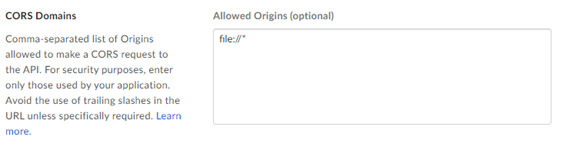
具有访问令牌和 JWT 身份验证的 Box 应用程序:
为允许的来源输入
file://*。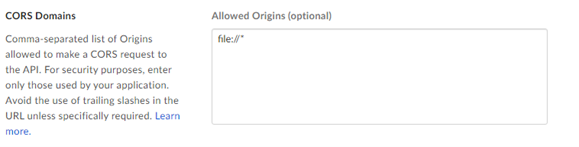
We have deprecated the below standalone Box tools. Install the latest Box Connector to leverage the newest features.

有了 Box 连接器,即可在 Designer 中使用存储在 Box 工作区中的文件运行、计划和发布工作流。支持的文件类型包括 XLSX、CSV 和 YXDB。
2025 年 12 月 8 日
ID | 描述 |
|---|---|
TPM-5038 |
|
TPM-5006 |
|
TPM-4984 |
|