Box
The Box connector lets you connect to Box storage in Designer. Box is available as a data source in the Input Data and Output Data tools, letting you read from and write to Box directly in your Designer workflows.
Wichtig
New Connector Version in Designer
If your workflow uses the standalone Box Input or Box Output tools, those are now deprecated. Instead, use connector version 3.0.0 or later with the Input Data and Output Data tools. Use the workflow migration utility to update existing workflows.

If you want to update the Box connector in your Designer workflows, you can use the workflow migration utility.
Prerequisites
Requirement | Detail |
|---|---|
Designer Version |
|
Connector Version | Box version 3.0.0 or later. Available from Designer Add-Ons. |
Box Permissions | See Box App Registration. |
DCM | You must enable DCM in Designer. Go to Options > Advanced Settings > DCM to enable it. |
Network Access | Outbound access to Box and Box OAuth endpoints. |
Box Connector Details
Box is available in Designer Desktop 2025.1 Patch 5 and later as a data source for the Input Data and Output Data tools. To learn more about the file type options, go to Read Data from Box or Write Data to Box .
Versionshinweise zu Konnektor 1.0.0 (Python)
ID | Beschreibung |
|---|---|
v3.0.0 |
Known Issue
|
Install the Connector
You can easily install the latest version of the Box connector from Designer via the Add-Ons. This is the recommended installation method that allows you to browse, install, and update connectors without leaving Designer or visiting the Alteryx Marketplace.
To install the connector…
In Designer, go to Add-Ons > Manage Marketplace Add-Ons. You will see a list of available connectors.
Select Box Tools Connector and select Install. Designer downloads and installs the package. Designer might require a restart to complete the installation.
After installation and setup are complete, the Box connector is available from the Input Data and Output Data tools.
Set Up a Connection
To connect to Box connector using DCM...
Drag the Input Data or Output Data tool to the canvas, and select Connect to Data.
In the Connector Setup, select Create or Browse a Data Connection.
If you've created a Box connection before, you can select the connection from the Recents tab.
Select + New. From the list of technologies, select Box.
Enter the Connection Name and Data Source Name.
In the Credentials section, select your authentication method, and enter the credentials. For more information, see Authentication Methods.
Select Save. You can also select Test Connection to validate your credentials before saving.
Select Connect. Box may request authentication.
Select the read or write configuration in the Options window. To know more about the options, see to Read Data from Box or Write Data to Box .
Select Confirm to create a connection to the file. You can continue building your workflow.
You can use the same Box connection in both the Input Data and Output Data tools.
Workflow Migration
If your existing workflows use the deprecated Box Input or Box Output tools, you need to migrate them to use the new connector. Use the workflow migration utility to update existing workflows. The utility requires Designer 2025.2 Patch 3 or later.
The utility previews all the changes and replaces deprecated tool instances with the new connector versions without breaking the workflows.
Review the Changed Behavior and Limitations sections before you migrate.
Anmerkung
Your existing Box connections may need to be recreated. Connections created with Box connector version 2.5.8 and earlier do not automatically become version 3.0.0 connections.
Authentication Methods
Box supports four authentication methods. Use the table below to choose the right one for your use case.
Method | Details |
|---|---|
Built-in |
|
Custom App |
|
Access Token |
|
JWT app auth |
|
All four methods support Test Connection, which validates your credentials before you save the connection.
Changed Behavior from Previous Version
Review the changed behavior from version 2.5.8.
Shared links are accessed with the Raw Path feature. Not an authentication method.
Include subfolders checkbox is part of the Download File or Folder input option, which handles files and folders together.
The legacy option Rename is now Create a New File, which appends a timestamp rather than a unique number.
Limitations
You can use the Modify option in Box Output to append data to an XLSX file. Box connector versions 2.5.8 and earlier also support appending data to CSV and YXDB files. In version 3.0.0, Append is supported for XLSX files only.
The Upload File to Box output option is not available in version 3.0.0. It will be part of an upcoming release.
Box connector version 3.0.0 is available in Designer Desktop. Support for Alteryx One is planned for a later release.
Desktop Automation (Scheduler) is not supported by this connector.
Workflows that contain the Box connector must use the AMP engine.
Data Connection Manager
Die Box-Tools ab Version 2.5.0 unterstützen Data Connection Manager für eine einfachere und sicherere Speicherung Ihrer Anmeldedaten. Stellen Sie eine Verbindung zu Box her, um die gespeicherten Anmeldedaten einfach in Workflows wiederverwenden zu können, die Box-Tools enthalten. Alteryx Server benötigt gespeicherte Anmeldedaten, um die veröffentlichten Workflows erfolgreich ausführen zu können.
The Box tools version 2.5.0 and later also support Data Connection Manager.
AMP Engine aktivieren
Stellen Sie sicher, dass die AMP Engine für Workflows aktiviert ist, die Box-Tools ab Version 2.5.0 enthalten, um das volle Potenzial von Designer auszuschöpfen.
Registrierung der Box-App
Melden Sie sich mit Ihren Box-Anmeldedaten unter https://alteryx.app.box.com/developers/console an.
Wählen Sie Neue App erstellen aus.
Wählen Sie Benutzerdefinierte App aus.
Wählen Sie unter Authentifizierungsmethode die Option Benutzerauthentifizierung (OAuth 2.0) aus. Geben Sie den App-Namen ein, und wählen Sie App erstellen aus.
Wählen Sie auf der Registerkarte Konfiguration unter App-Geltungsbereiche die Option Alle in Box gespeicherten Dateien und Ordner schreiben aus, um der App Berechtigungen zu erteilen.
Wählen Sie Änderungen speichern aus.
Um ein neues Entwicklertoken zu generieren, wählen Sie Widerrufen und dann Entwicklertoken generieren aus.
Zur Authentifizierung können Sie die Client-ID und das Client-Geheimnis aus den OAuth 2.0-Anmeldedaten verwenden.
Benutzerdefinierte Anwendungseinrichtung
Um ein Box CORS-Problem bei der Verwendung der App mit OAuth-Authentifizierung oder Access Token und JWT zu vermeiden, empfiehlt es sich, eine benutzerdefinierte Konfiguration zu verwenden:
Box-App mit OAuth-Authentifizierung:
Fügen Sie URI umleiten https://cef.alteryx.com/designer/oauthcallback hinzu, um das CORS-Problem im CEF-Fenster zu beheben.

Geben Sie
file://*für zulässige Ursprünge ein.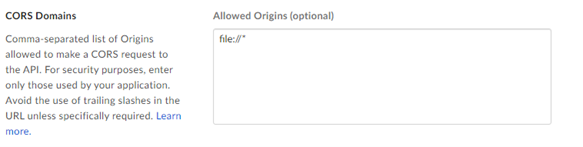
Box-App mit Access Token und JWT-Authentifizierung:
Geben Sie
file://*für zulässige Ursprünge ein.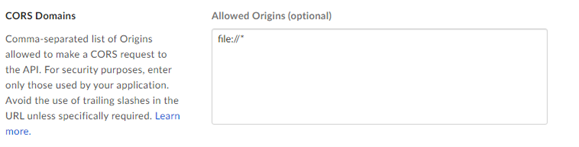
We have deprecated the below standalone Box tools. Install the latest Box Connector to leverage the newest features.

Verwenden Sie den Box-Konnektor zum Ausführen, Planen und Veröffentlichen von Workflows aus Designer unter Verwendung von Dateien, die in Ihrem Box-Arbeitsbereich gespeichert sind. Unterstützte Dateitypen sind XLSX, CSV und YXDB.
8. Dezember 2025
ID | Beschreibung |
|---|---|
TPM-5038 |
|
TPM-5006 |
|
TPM-4984 |
|